Fast, reliable check-in and badge printing
An iPad kiosk app and a label printer that check students and recruiters in at events and print their badges, even on poor Wi-Fi.
Three ways in, and it works without Wi-Fi
The Career Forge Kiosk app runs on an iPad with a Brother label printer. Set-up takes seconds, and check-ins keep going when the venue's network does not.
- Scan the student ID, search a name, or tap an NFC card
- Default, Speed and Tap-and-Go modes, or check-in without printing
- Recruiters check in and get badges too, with on-the-day employer additions
- Check-ins are stored on the iPad and synced when it is back online
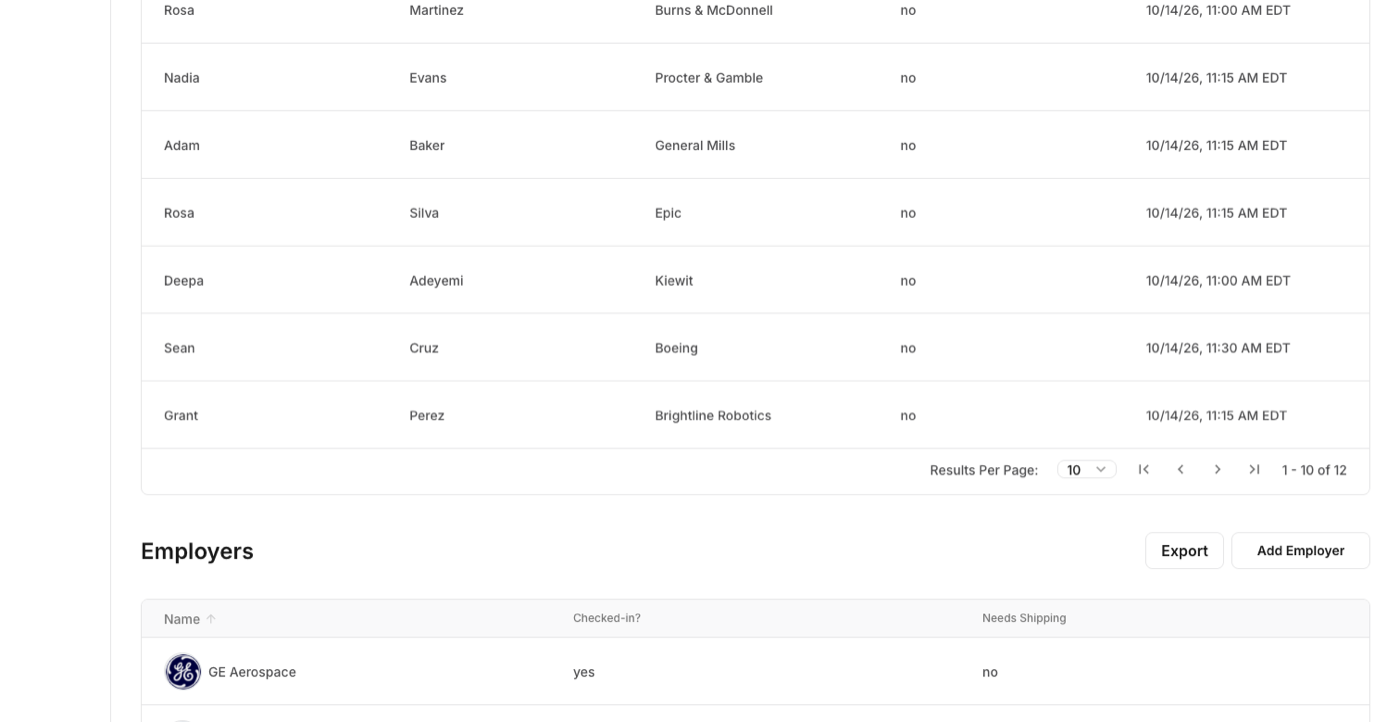
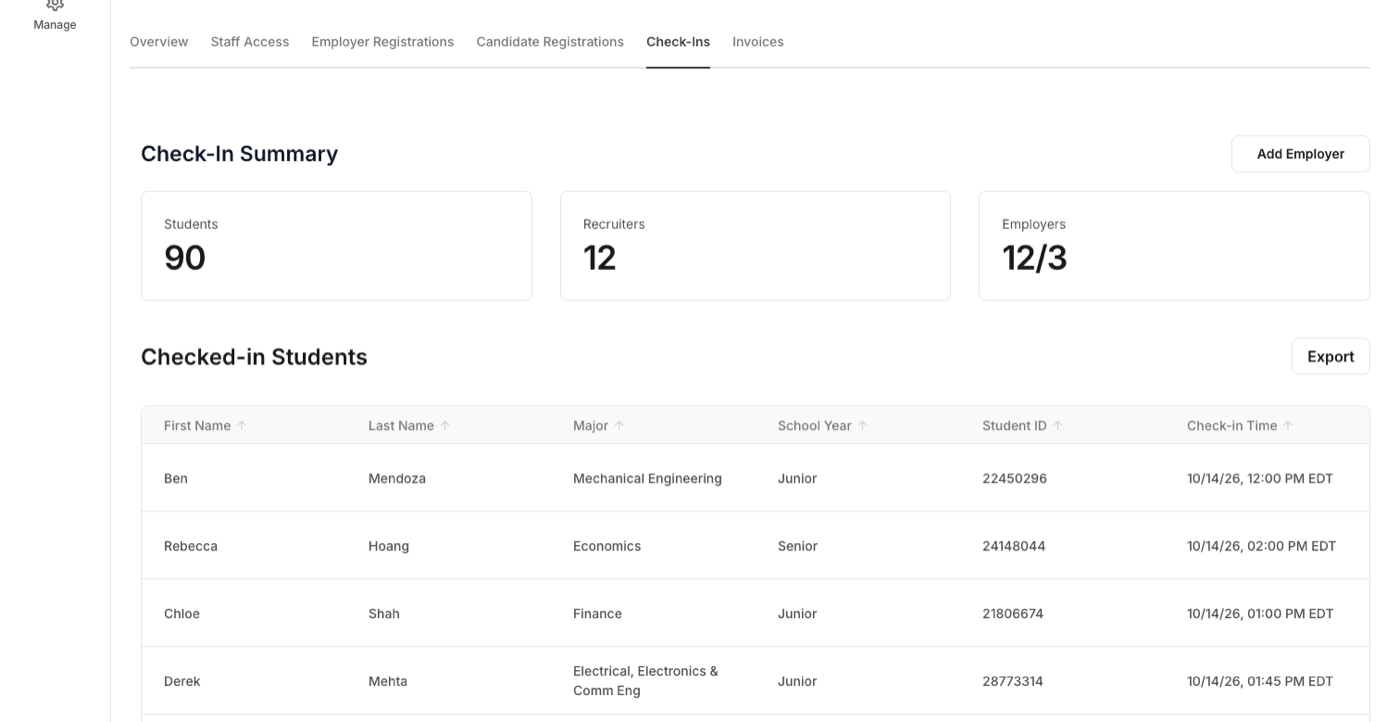
Every check-in on a web dashboard
Counts by students, recruiters and employers, the full list of who came, and an export.
- A registered student's check-in marks them as attended
- Students do not have to be registered to check in
- Export from the dashboard
Set once, at the level it belongs to
Each career center on a campus runs its own check-in & badge printing; what the institution shares is set once for all of them.
| Setting | Set where |
|---|---|
| Kiosk mode: Default, Speed, Tap-and-Go or manual search only; Speed and Tap-and-Go can run together | Per iPad, in the kiosk settings |
| What the student side collects, such as position types sought, and whether it is required | Per event, on the kiosk |
| What the recruiter side collects: email, alumni status, shipping needs, each optional or required | Per event, on the kiosk |
| Check-in only, without printing a badge | Per iPad |
| Several sessions on one event, each with its own check-in | Per event |
| Who can log in to the kiosks and who watches the dashboard | Per career center, by user permission |
| The student ID card layout the camera reads | Per institution, once for every career center |
Check-in & Badge Printing next to Handshake’s
Most career centers that ask about the kiosk are comparing it with Handshake's. The difference is the hardware model, in each vendor's own words.
| Career Forge | Handshake | |
|---|---|---|
| The device | An iPad running the Career Forge Kiosk app, on a stand. | A browser kiosk on a desktop or laptop. The kiosk runs on an iPad, but name tags cannot print from one. Source |
| The printer | A Brother QL-820NWBC label printer, paired over Bluetooth. | A Dymo 450, 550 or LabelWriter Wireless, connected by USB to the computer the software was installed on. Source |
| What gets installed | The app, from the App Store. | Dymo software on a Windows or macOS computer (Chromebooks and Linux are not supported), and an XML label template pasted into each event. Source |
| IT involvement | None. No drivers, no print services, nothing on a campus computer. | For the wireless printer, Handshake recommends having your IT team help set it up. Source |
| When the Wi-Fi drops | Check-ins and badges continue; the iPad stores them and syncs when it is back online. | The kiosk switches to offline mode and uploads check-ins when the connection returns; internet is needed to set up and launch it. Source |
| Recruiter badges | Recruiters check in and get badges too, with on-the-day employer additions. | Name tags are described for student attendees; recruiter badges are not described on its site. Source |
Statements about Handshake come from its own help center, linked in each row. The full comparison






Check-in & Badge Printing, in a career center's words
“One of the big wins from the beginning has been the badging system. It works really well, it impresses students and the rest of the university, and we've been able to use it for other events.”
“We had 1,720 students check in through Career Forge at our two-day fall fair. That was awesome.”

“We promoted early check-in, which we called Skip the Line, and had the kiosk in our office for about a week beforehand. The line was much more manageable than last year's fall fair, and we got good feedback from employers.”
A fall fair of a little over 1,100 students, with the kiosk set up in the office the week before so students could print their badges early.
What Check-in & Badge Printing does not make you do
Nothing to install
The Career Forge Kiosk app from the App Store on an iPad, and a Brother label printer paired over Bluetooth. No drivers, no print server, nothing on a campus computer, no ticket to IT.
Built for bad Wi-Fi
Once the event's data is loaded onto the iPads, check-in needs no internet at all; the printer is on Bluetooth. Check-ins are saved on the iPad and synced back to Career Forge when there is a connection again.
Nobody is turned away
A student who is not on the list adds themselves. A recruiter who is not on the list adds themselves as long as their employer is. A new employer is added from the web, on the day, by whoever is watching the dashboard.
Questions people ask about Check-in & Badge Printing
Works with
See Check-in & Badge Printing on your career center
A 30-minute walkthrough with the team that builds it.
